

When a computer starts lagging, most people assume they need more RAM. Sometimes that’s true, but just as often the real problem is software quietly using memory in ways you never notice. Before buying new hardware, these lesser-known, tech-backed RAM hacks are worth checking. They focus on common memory drains that even experienced users often overlook.
Chrome’s Memory Saver May Already Solve Half The Problem

Many people think closing browser tabs is the only answer. Modern versions of Google Chrome include Memory Saver, which automatically frees RAM used by inactive tabs while keeping them available to reopen instantly. If you regularly work with dozens of tabs, enabling this feature can noticeably reduce memory usage without changing your browsing habits.
RGB Software Can Quietly Consume Hundreds Of Megabytes

Lighting software from gaming hardware brands often runs continuously in the background. Programs like Corsair iCUE, ASUS Armoury Crate, MSI Center, and Razer Synapse don’t just control lights. They also monitor devices, check updates, and load extra services into memory. If you rarely adjust your lighting, disabling unnecessary background components may free resources.
Cloud Storage Apps Don’t Stop Working After They Finish Syncing

OneDrive, Dropbox, Google Drive, and Adobe Creative Cloud continue monitoring folders even after syncing appears complete. During large uploads or indexing, memory usage can increase significantly. If your computer suddenly slows while organising thousands of files, check whether a sync app is quietly working in the background.
Browser Extensions May Be The Bigger Problem Than Your Tabs
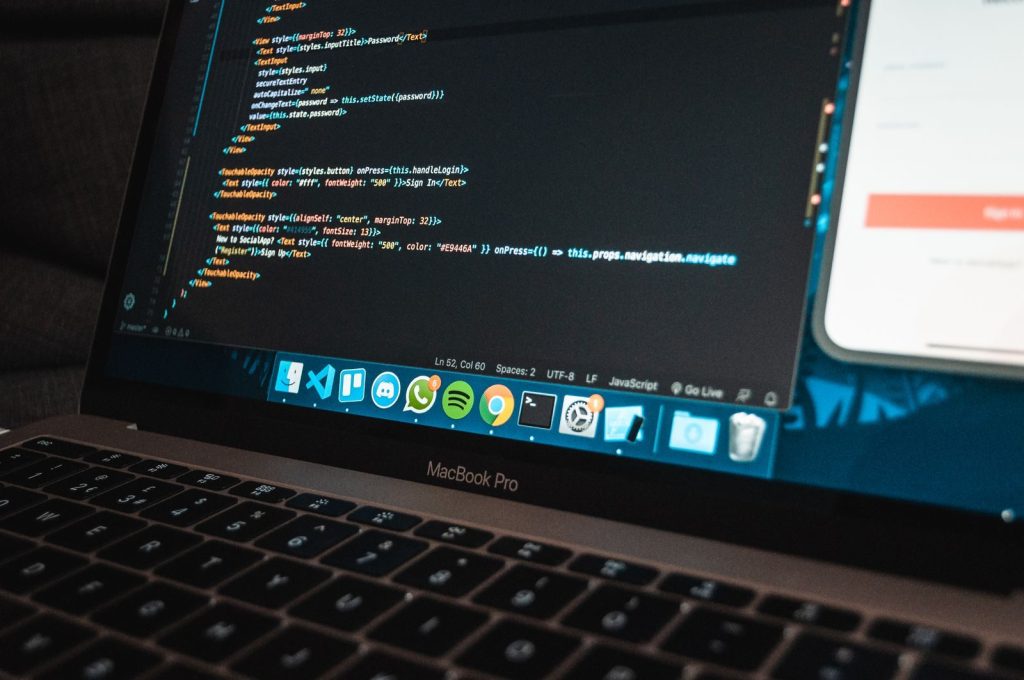
People often blame open tabs, but poorly optimised extensions can consume memory all day long. Coupon finders, AI assistants, shopping tools, and old productivity extensions continue running even when you’re not actively using them. Reviewing and removing extensions you no longer need is often more effective than closing a handful of tabs.
Windows Can Slow Down Even When RAM Isn’t Full
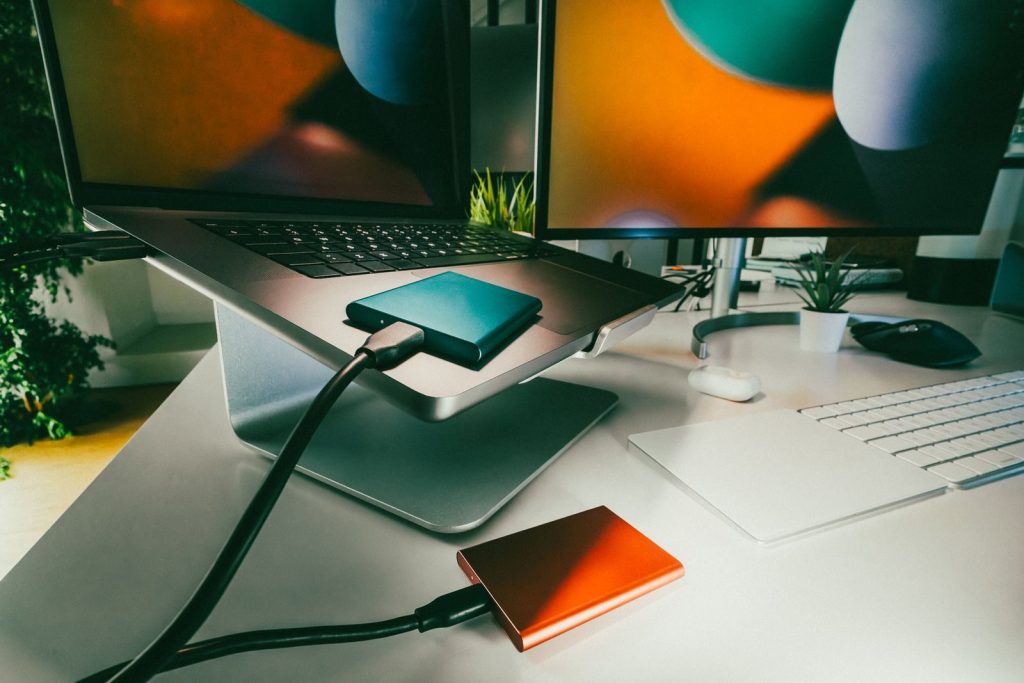
If your computer runs out of available memory, Windows automatically moves some information to your storage drive using virtual memory. If that drive is nearly full or much slower than modern SSDs, your PC can feel like it’s struggling with RAM when the real bottleneck is storage performance.
Startup Apps Aren’t Always The Ones You Can See
Disabling startup apps is common advice, but many background services continue launching even when their main programs stay closed. Software updaters, printer utilities, game launchers, RGB controllers, and hardware monitoring tools often start automatically. Reviewing background processes occasionally can reveal memory users you forgot were installed.
More RAM Won’t Fix Every Slow Computer
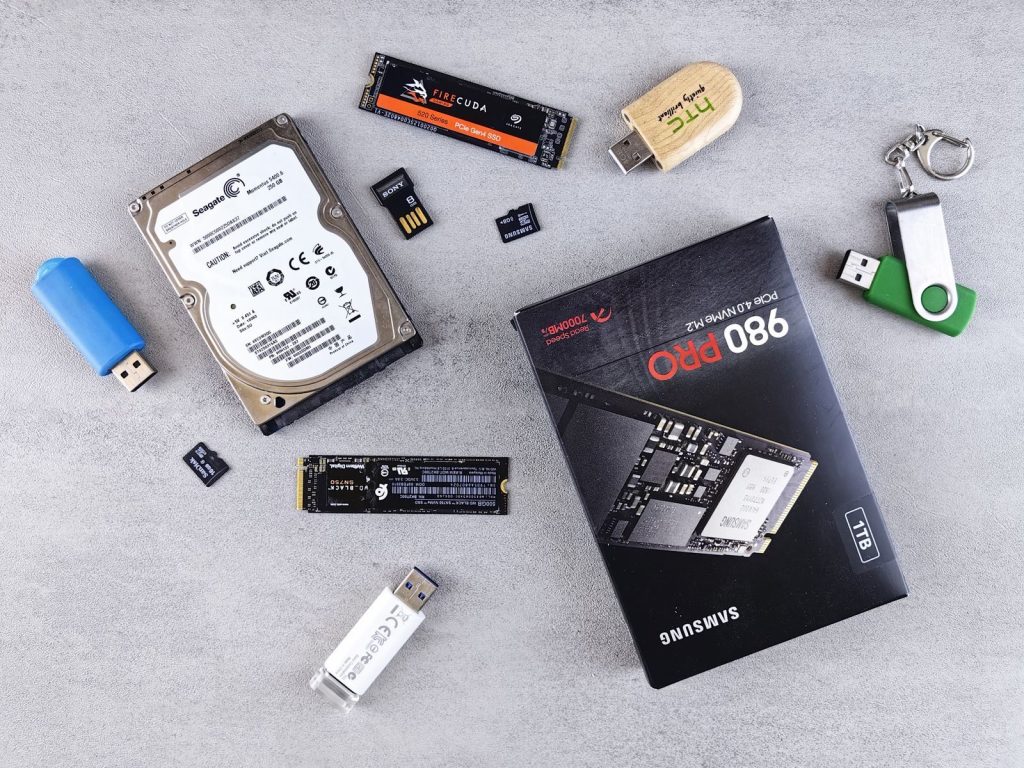
Adding RAM only helps if your system is consistently running out of it. If memory usage rarely reaches its limit, an upgrade may have little effect. An aging hard drive, thermal throttling, outdated drivers, or a crowded SSD can all produce similar symptoms. Checking memory usage before buying hardware can save money and point you toward the real fix.
Sometimes The Best Upgrade Doesn’t Cost Anything

A slow computer isn’t always asking for more RAM. Sometimes it’s asking for fewer hidden background processes, smarter browser settings, or a closer look at what’s quietly running behind the scenes. Understanding how your system actually uses memory can help you solve the right problem instead of buying hardware you may not need.